 Cabinet Swatchbook
Finish studio
Soft sage
Demo kitchen, not a customer project. Screen colors are approximate — confirm final selections with physical samples.
Outline a surface
Choose a material, then tap around its edges on the photo. Add each separate surface in its own outline.
Render this kitchen
Your photo stays on this device until you choose to send it for rendering.
You can use the demo kitchen, compare finishes locally, and export an existing proposal as a PDF without signing in or using any allowance.
See the Soft sage sample render
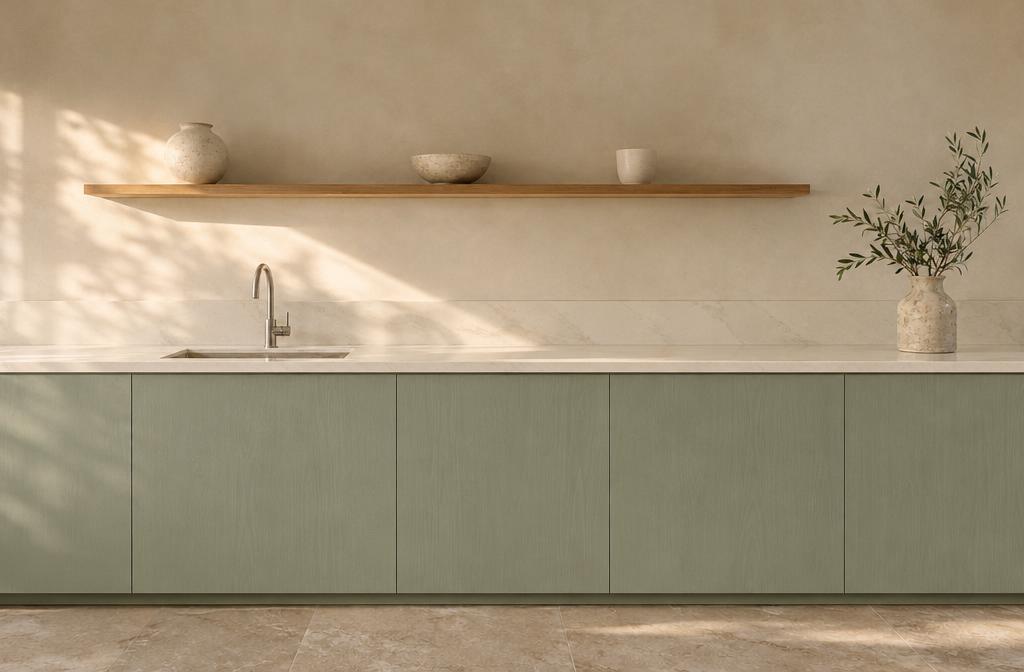
Demo kitchen, not a customer project. Screen colors are approximate — confirm final selections with physical samples.
Download renderingOnline rendering is unavailable in this preview.
From kitchen photo to finish proposal
01 · Choose the kitchen
Start with the room where the cabinets will stay. A photograph that shows both the cabinet doors and the counter gives you a useful place to study how the materials meet. If the question concerns an island, choose a view that includes its front and its top. If it concerns the wall cabinets, make sure those doors are visible. You can also open the demo kitchen to learn the controls before choosing a photograph of your own. Your photo stays on your device until you choose to upload it for rendering.
02 · Choose finishes and outline the surfaces
Choose a cabinet finish and a countertop finish as a pair. Open Edit surfaces and mark the cabinet faces you want to change. Mark the countertop separately so that its finish follows the work surface. Where an appliance interrupts a run of doors, end the outline at the appliance and start another outline on the other side. Leave any surface you want to keep outside the outlines. The same selection gives you a consistent starting point as you switch between palettes.
03 · Compare the options and export
Switch palettes to review each option on your photo. Move the divider to compare the selected finish with the original. When you can explain the differences you want someone else to consider, choose Create client proposal. Select the options you want that person to see and download the PDF. A proposal can present a shortlist even while the final choice between physical samples is still open.
Your material proposal
Choose the cabinet and countertop pairings you want your client to review, then export them together in a PDF.
Draft storage
Changes stay in this browser